
More and more of the working day happens inside an AI app. You ask Claude to summarise a document, or ChatGPT to draft an email, and then you switch tabs to check who has a birthday this week and switch again to send the wish. Every switch is a chance to forget.
Now you don’t have to leave the chat. Peoplewisher has an MCP server, so you can connect your account to Claude or ChatGPT and ask about celebrations, add people and send wishes in plain words.
What’s new
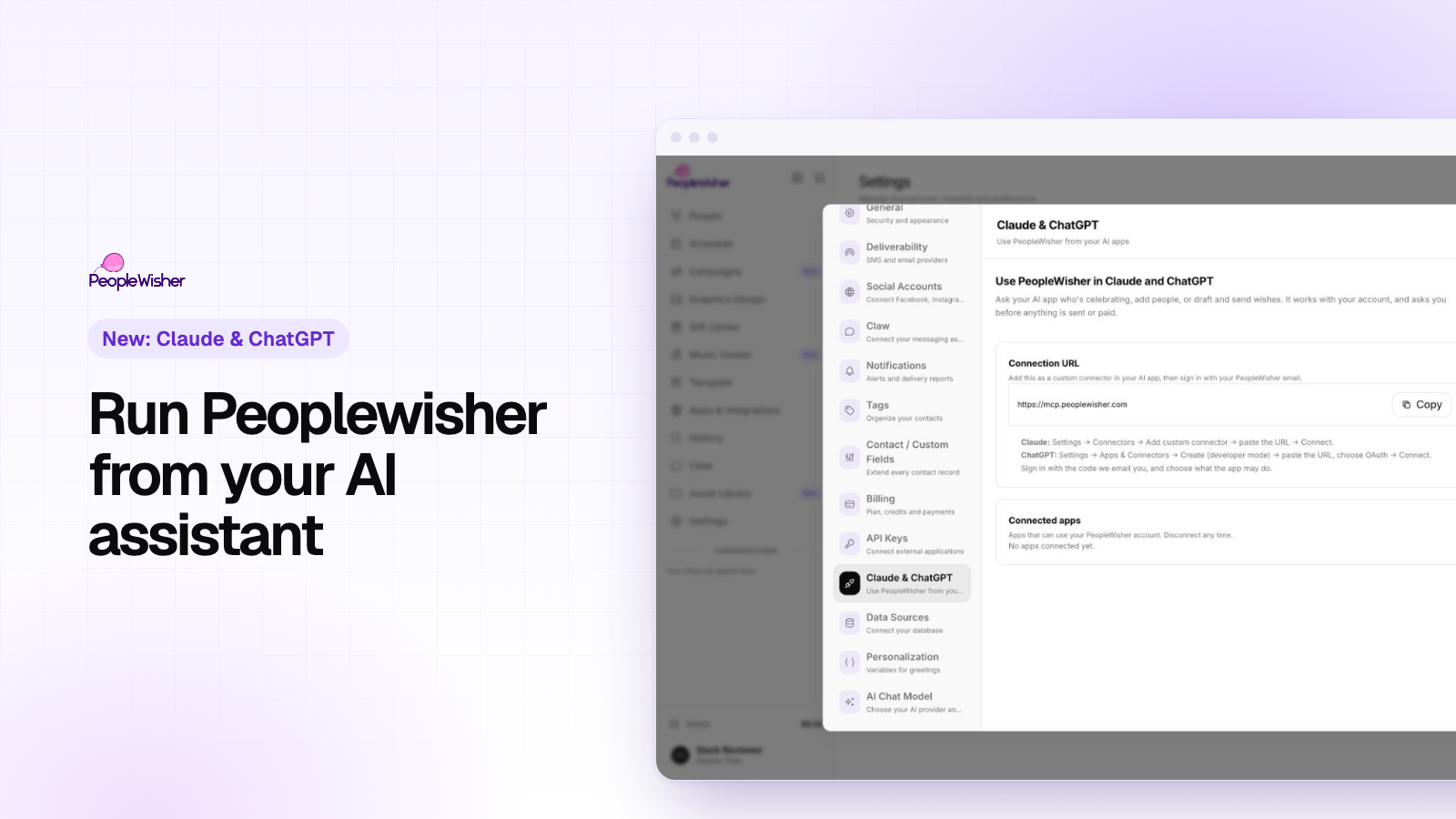
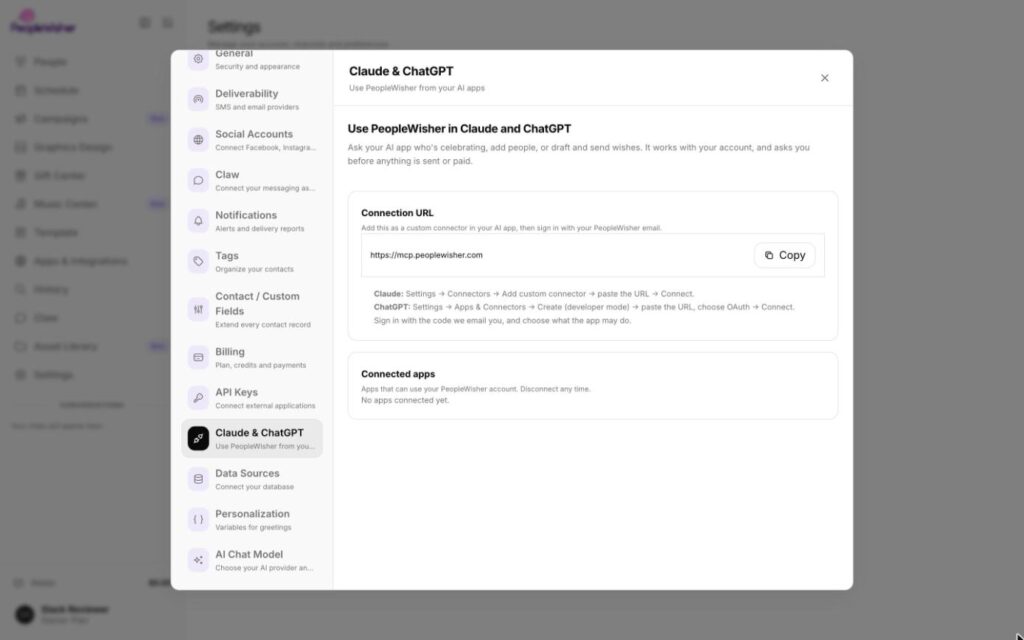
MCP (Model Context Protocol) is the open standard that AI apps use to connect to other tools. The Peoplewisher MCP server lives at https://mcp.peoplewisher.com. Add it once as a custom connector in your AI app, sign in to Peoplewisher, and the app can work with your account.
- Sign in with OAuth. No passwords or API keys to paste. You enter your Peoplewisher email, type the 6-digit code we send you, and choose what the app may do.
- You choose the permissions. Seeing your people and celebrations is always on. Adding and changing people and settings, and sending messages and spending from your wallet, are separate boxes you can tick or leave off.
- Ask who’s celebrating. Today, this week, this month, or for one group. You can also ask for message stats, your wallet balance and anything that needs attention before a celebration is missed.
- Draft and send wishes. Ask for a personal message, read it word for word, ask for changes, then send it now or schedule it. You can also send one message to whole groups by SMS or email.
- Add and update people. Add someone in one sentence, fix a birthday or phone number, or import a whole list from a CSV or Excel file.
- Songs, graphics and gifts. Create a celebration song or a graphic for a contact, send a gift, or set a gift for a whole group.
- Save a graphic made in ChatGPT. If you create a picture with ChatGPT’s image tool, ask it to save the picture to a contact’s graphics in Peoplewisher so it can be used with their greeting.
- A settings page in the app. Settings › Claude & ChatGPT shows the connection URL with a copy button, the steps for each app, and the apps connected to your account, each with a Disconnect button.
Why it matters
The best reminder is the one that shows up where you already are. If you start your day in Claude or ChatGPT, Peoplewisher can now be part of that conversation.
Think of a customer success manager with 150 accounts. On Monday morning she asks Claude, “Which of my clients have a birthday or anniversary this week?” Claude lists them from her Peoplewisher groups. She replies, “Write a warm note for Tunde, mention his team’s launch, and show it to me first.” She tweaks one line, says “send it by email,” and Claude shows a summary and asks her to confirm. One more message and it is done, without opening another tab.
The same works for an office manager who makes a birthday card in ChatGPT and wants it to go out with the automatic greeting. “Save this picture to Ada Okafor’s graphics in Peoplewisher,” and it is there in the app.
How to set it up
- Sign in to Peoplewisher, open the account menu at the bottom of the sidebar and choose Settings.
- Open the Claude & ChatGPT tab and click Copy next to the Connection URL.
- In Claude: go to Settings › Connectors, click Add custom connector, name it Peoplewisher, paste the URL and click Connect. On Claude Team and Enterprise plans, an owner adds the connector for the organization first.
- In ChatGPT: go to Settings › Apps & Connectors › Advanced settings and switch on Developer mode. Back in Apps & Connectors, click Create, name it Peoplewisher, paste the URL, choose OAuth and click Connect. Custom connectors need a paid ChatGPT plan.
- When the Peoplewisher sign-in opens, enter your email, click Email me a sign-in code and type the 6-digit code.
- On the next screen, tick what the app may do and click Allow access.
- Start a chat, turn on Peoplewisher from the tools menu, and ask something like “Who has a birthday this week?”
Good to know
- Nothing is sent or spent without you. Before a message goes out, money is spent or a person is removed, Peoplewisher returns a summary and the AI app must ask you to confirm. Unconfirmed actions expire after 15 minutes.
- The connector works with any AI app that supports remote MCP servers with OAuth sign-in.
- Team members connect with their own sign-in and act with the permissions of their own role.
- Some actions still follow your plan and wallet. For example, sending SMS campaigns or gifts uses wallet credit.
- Each connection can make up to 60 requests a minute, which is far more than a normal conversation needs.
- Pictures saved from ChatGPT can be PNG, JPEG or WEBP, up to 10 MB.
FAQ
Can Claude or ChatGPT send messages without asking me?
No. Messages are shown word for word first, and any action that sends, spends or deletes waits for you to confirm in the chat. If you don’t tick the “Send messages and spend from your wallet” box when you connect, the app can’t send or spend at all.
Does the AI app see my Peoplewisher password?
No. You sign in with a code sent to your email on a Peoplewisher page, and the app only receives access to your account with the permissions you chose.
How do I disconnect an app?
Open Settings › Claude & ChatGPT in Peoplewisher and click Disconnect next to the app. You can also remove the connector in the AI app’s own settings. Your automatic greetings keep running either way.
Do I still need the Peoplewisher app?
Yes, for setting up groups, schedules and templates. The connector is a quick way to check, ask and send from the chat you already have open.
Try it
The full step-by-step guide is on the Peoplewisher MCP page. If you don’t have an account yet, create one for free, then ask your AI app who is celebrating this week.
Put this on autopilot with Peoplewisher
Import your people once. Peoplewisher remembers every date, writes the message, designs the card and sends it on the right channel.