

Some greetings land better when you can hear them. A short “Happy birthday, we’re so glad you’re here” in a familiar voice says more than a paragraph of text. The trouble is time: recording a voice note for every employee, customer or church member, on the right day, is not something most people can keep up.
Peoplewisher now does it for you. You can add a voice note to your automatic birthday wishes, either one you record once for the whole group or an AI voice note that speaks each person’s name, in a ready-made voice or in your own.
What’s new
Voice notes live in each group’s schedule and work in two ways.
1. Your recording, sent with every wish
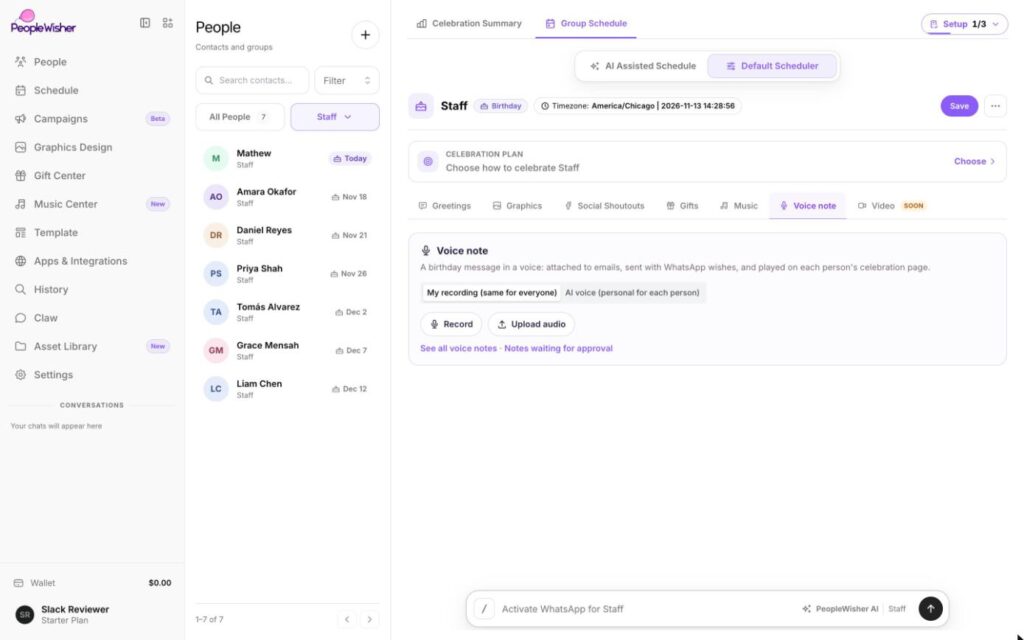
- Record or upload once. Record straight in the browser or upload an audio file (MP3, M4A, WAV, OGG and other common formats). Notes can be up to 3 minutes long.
- It rides along with email and WhatsApp. On email, the voice note is attached as an MP3 and a “Listen to your voice note” button is added under your message. On WhatsApp, it follows the text as an audio message. If you send through official WhatsApp templates, Peoplewisher adds a “Play voice note” button that opens the person’s celebration page.
- It plays on the celebration page. Every person’s celebration page gets a Voice tab with a player, so the note is easy to find again later.
2. AI voice notes, personal for each person
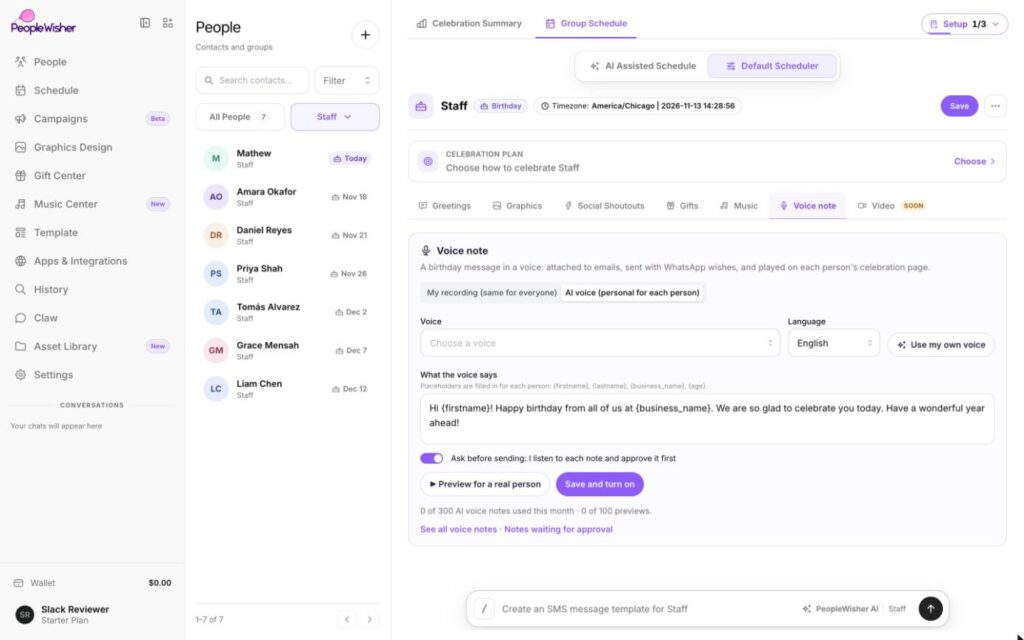
- A ready-made voice or your own. Choose from a list of ready-made voices, or create your own voice by reading a short passage aloud for at least 30 seconds. Peoplewisher then speaks each note in your voice.
- Personalised per person. Write what the voice should say, up to 600 characters, using {firstname}, {lastname}, {business_name} and {age}. Each person hears their own name. Any placeholder without a value is left out rather than read aloud.
- English or Spanish. Pick the script language. Switching swaps in a default script but keeps any words you wrote yourself.
- Preview for a real person. Hear exactly how the note will sound for the next person celebrating in the group before anything is made for real.
- Approve before sending. Approval is on by default. Notes are made a day or two before each birthday, and you listen, approve, edit the words or skip each one. Only approved notes go out.
- Voice note history. See every voice note made or sent, whether it went out, and on which channels.
Why it matters
A voice carries warmth that text cannot. It also shows that someone took a moment for you, which is exactly what birthday wishes are meant to do.
Take a pastor whose church has 350 members in its Peoplewisher groups. On a Sunday afternoon he records the sample for his own voice, writes “Hi {firstname}, happy birthday from all of us at {business_name}. We thank God for you and we’re praying for a wonderful year ahead,” and previews it for the next member on the list. From then on, each member gets a WhatsApp birthday wish followed by a voice note in the pastor’s voice, using their name. He gets a short list to review a day or two ahead, and approves them from his phone.
For an HR team, the same idea works with the CEO’s voice, or with a ready-made voice if nobody wants to record. For a small business, a recorded thank-you from the owner, sent with every customer’s birthday email, takes ten minutes to set up and keeps working all year.
How to set it up
- Sign in to Peoplewisher and go to People. Open the group you want to add a voice note to.
- Open the Group Schedule tab, choose Default Scheduler, then the Voice note tab.
- To use your own recording, click Record (or Upload audio), listen back, then click Use this voice note.
- For a personal note per person, choose AI voice (personal for each person). Pick a voice from Choose a voice, or click Use my own voice, read the passage, name your voice, tick the consent box and click Make my voice.
- Choose the Language, edit What the voice says, and click Preview for a real person to hear it.
- Leave Ask before sending on if you want to approve each note, then click Save and turn on.
- Go to the Greetings tab and tick Attach voice note on the Email and/or WhatsApp channel so the note is sent with the wish.
Later, use the See all voice notes and Notes waiting for approval links at the bottom of the Voice note card to check what has gone out and what is waiting for you.
Good to know
- Voice notes are sent on email and WhatsApp. Other channels don’t carry them, but the note is always on the person’s celebration page.
- Recordings and uploads can be up to 3 minutes, and uploaded files up to 25 MB.
- AI voice notes are made a day or two before each birthday, one per person per celebration.
- Each account can keep up to 3 of its own voices. Creating a voice requires you to confirm it is your own voice and that you allow Peoplewisher to use it for your greetings.
- The Voice note card shows how many AI voice notes and previews you have used this month.
- Approvals also arrive by email, with Listen, Approve and Don’t send buttons and an Approve all option. Links expire after 7 days.
- Your recordings and voice notes are stored in your Asset Library under Voice notes.
FAQ
Can I clone someone else’s voice?
No. You must confirm that the voice is your own before Peoplewisher creates it, and that confirmation is stored with the voice. If you want a colleague’s voice, they should sign in and record it themselves.
Will people get the voice note if they use WhatsApp templates?
Yes. Templates can’t carry audio, so Peoplewisher adds a “Play voice note” button that opens the person’s celebration page. Meta needs to approve the updated template, which usually takes minutes, and wishes from that group wait until it does.
Where can I see which voice notes were sent?
Open History and switch to Voice notes, or open a contact and choose the Voice note tab. Each note shows its status, when it was sent and on which channels.
What if I don’t like how a note sounds?
In the review list, click Edit the words, change the script and click Make it again, or choose Don’t send to skip it.
Try it
Read more about how Peoplewisher handles every date on the celebration automation page, then create your Peoplewisher account and record your first birthday voice note today.
Put this on autopilot with Peoplewisher
Import your people once. Peoplewisher remembers every date, writes the message, designs the card and sends it on the right channel.