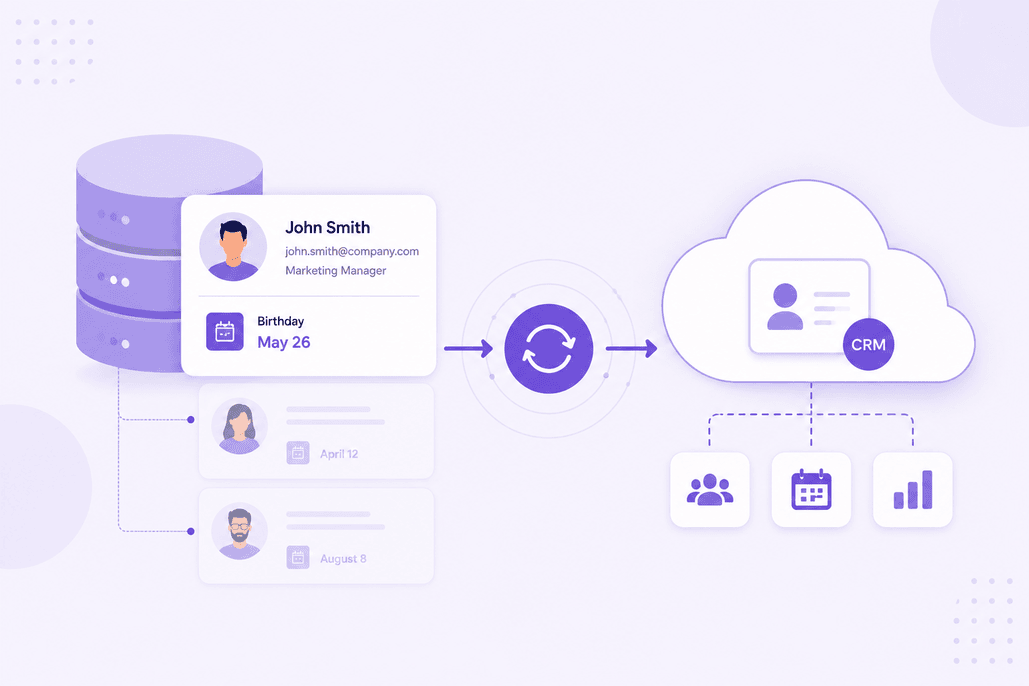


Two moments make people nervous when they start with any automated messaging tool. The first is the import: you upload a spreadsheet of 300 people and hope the birthdays, names and phone numbers land in the right places. The second is the first real send: will the message read well, will the name be right, will it look as good on a phone as it did on screen?
We’ve worked on both. Peoplewisher now lets you run a real test on yourself before anything goes to your people, and the import checks every row and helps you fix problems before they become wrong greetings.
What’s new
Test runs: see it, approve it, receive it
Ask the Peoplewisher AI assistant “Can I see a preview?” or “Let’s do a test run”, and it starts a guided test right in the chat. The plan is simple, and nothing is sent until you approve it:
- Tell it who to celebrate. Enter a sample person who is “celebrating today”, with the email and phone number the tests should go to, or tick “Use my own details”.
- It drafts each channel. You watch it write the email in two versions (rich text and a Studio designed email with a banner), the SMS, the WhatsApp message and, if you chose them, a song and a graphic.
- You preview, approve and send each one. Change anything you like, then click “Approve and send email”, “Approve and send SMS” or “Approve and send on WhatsApp”. The tests arrive on your own email, phone and WhatsApp.
- Open the celebration on Spotlight. The test person gets their own celebration page, showing everything you sent.
If you like one of the email versions, click “Keep … as my email template” and it becomes your template.
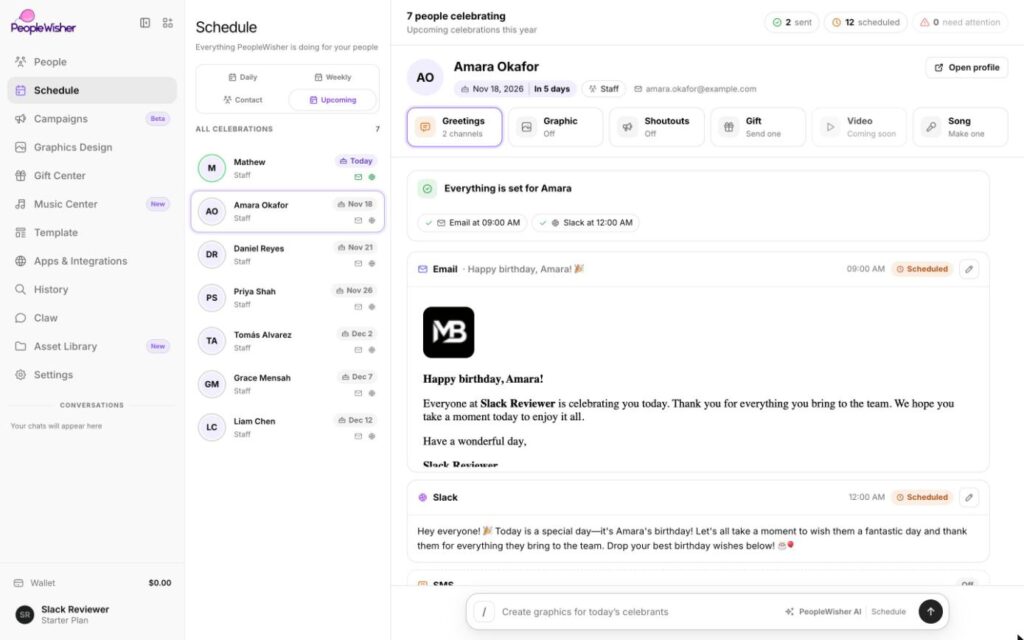
A schedule preview that matches the real send
The greeting previews on the Schedule page now fill placeholders in exactly the same way as the real send. Names, custom fields and ages are filled in for the real person, so what you see in the preview is what they will receive. Previously, the preview could show an age as “25th” while the message said “25”. That mismatch is gone, and it applies to email, Slack and social shoutout previews too.
Smarter people import
When you upload a spreadsheet or contact file, Peoplewisher now checks every row before importing. Columns are matched by what they contain, not just by their headers, so if your “Phone” column is really full of emails, you get a warning and a suggestion to use the right one. Emails and phone numbers are validated row by row.
On “Review and import”, Peoplewisher tells you exactly what it found, for example “1 emails can’t be read”, “1 birthdays can’t be read” or “1 people appear more than once”, and how many people are ready to import. For small problems you can fix the rows or tick “Skip these rows and import the rest”. When a lot of data is in the wrong place, you get more options. Here is what each one does:
- Fix automatically handles the common problems: it pulls an email out of extra text, finds a birthday typed into a name cell, swaps “Last, First” names into the right order, tidies phone punctuation and removes duplicates.
- Fix with AI works out the rules for messier files and applies them to every row.
- Fix rows myself opens the problem rows in an editable grid.
- Send to PeopleWisher team lets you add a note and send us the file. Our team will import it into your group or email you what to change.
Every fix can be undone. And if you click Import twice, or upload the same file again a few minutes later, Peoplewisher won’t import it twice: “This file is already being imported, so we didn’t add it again.”

Phone numbers saved in international form
When you add people through the WhatsApp assistant, whether you type a contact or send a file, phone numbers are now saved in full international form using your account’s country. A local number like 0999 099 502 on a Malawi account becomes +265999099502, ready for WhatsApp and SMS.
Why it matters
Think of an HR lead joining Peoplewisher with an export of 200 staff from an old HR system. Half the birthdays are in a “Notes” column and a dozen phone numbers are missing country codes. Before, the import would have gone through and the problems would only show up on someone’s birthday. Now the import tells her that 37 rows need attention, she clicks “Fix automatically”, reviews the few rows that are left in the grid and imports a clean list.
Then she runs a test with her own details. The SMS arrives on her phone, the email lands in her inbox, she keeps the Studio designed version as the team’s template, and she switches the schedule on knowing exactly what her colleagues will see.
How to set it up
- Sign in to Peoplewisher and click People in the sidebar.
- Click the + button at the top of the People list and choose Import Contact. The “Bring in your people” window opens.
- Choose Spreadsheet (CSV or Excel), vCard file or Another app, pick the group and upload your file.
- On “Match your columns”, check the columns Peoplewisher matched automatically and read any warnings, such as a column that mostly holds phone numbers.
- On “Review and import”, use Fix automatically or Fix rows myself (and, for bigger problems, Fix with AI or Send to PeopleWisher team), then click Import.
- Open the chat with the Peoplewisher AI and ask for a test run. Fill in “Who are we celebrating?” and click Start the test run.
- Review each draft and click Approve and send for every channel you want to test.
Learn more about how celebrations work end to end on our celebration page.
Good to know
- Tests are free. You can test each channel twice per account, to up to two different recipients.
- SMS tests are sent in Nigeria, the US and Canada. Elsewhere, you get a tap-to-send link and a QR code so you can send the test SMS from your own phone.
- WhatsApp tests come from Peoplewisher’s own number using approved sample templates.
- Supported files: CSV, Excel (.xlsx and .xls), text and vCard (.vcf), up to 10 MB per file.
- Fix with AI is available for files of up to 10,000 rows. It looks at a small sample of rows to work out the rules, so your full list is not sent to the AI.
- Your plan’s contact limit applies, and the import tells you how much room you have left.
- People already in the group with the same email or phone and birthday are skipped, so nobody is added twice.
Frequently asked questions
Does a test run send anything to my real contacts?
No. Tests only go to the sample person you enter, which can be you. They are kept in a separate “Test run” group.
Can I test a song or a graphic?
Yes, if you chose them when you signed up. The song in a test run is free.
What if my file is too messy to fix?
Click “Send to PeopleWisher team” and add a note. We’ll import it for you or tell you what to change.
What happens if I upload the same file twice?
If it’s still importing or finished in the last few minutes, Peoplewisher returns the first import instead of adding everyone again. If an import failed, you can always try again.
Start with confidence
The best first week with Peoplewisher is a clean list and a test you’ve seen with your own eyes. Create your Peoplewisher account, import your people and run your first test today.
Put this on autopilot with Peoplewisher
Import your people once. Peoplewisher remembers every date, writes the message, designs the card and sends it on the right channel.